Start by understanding the data flow
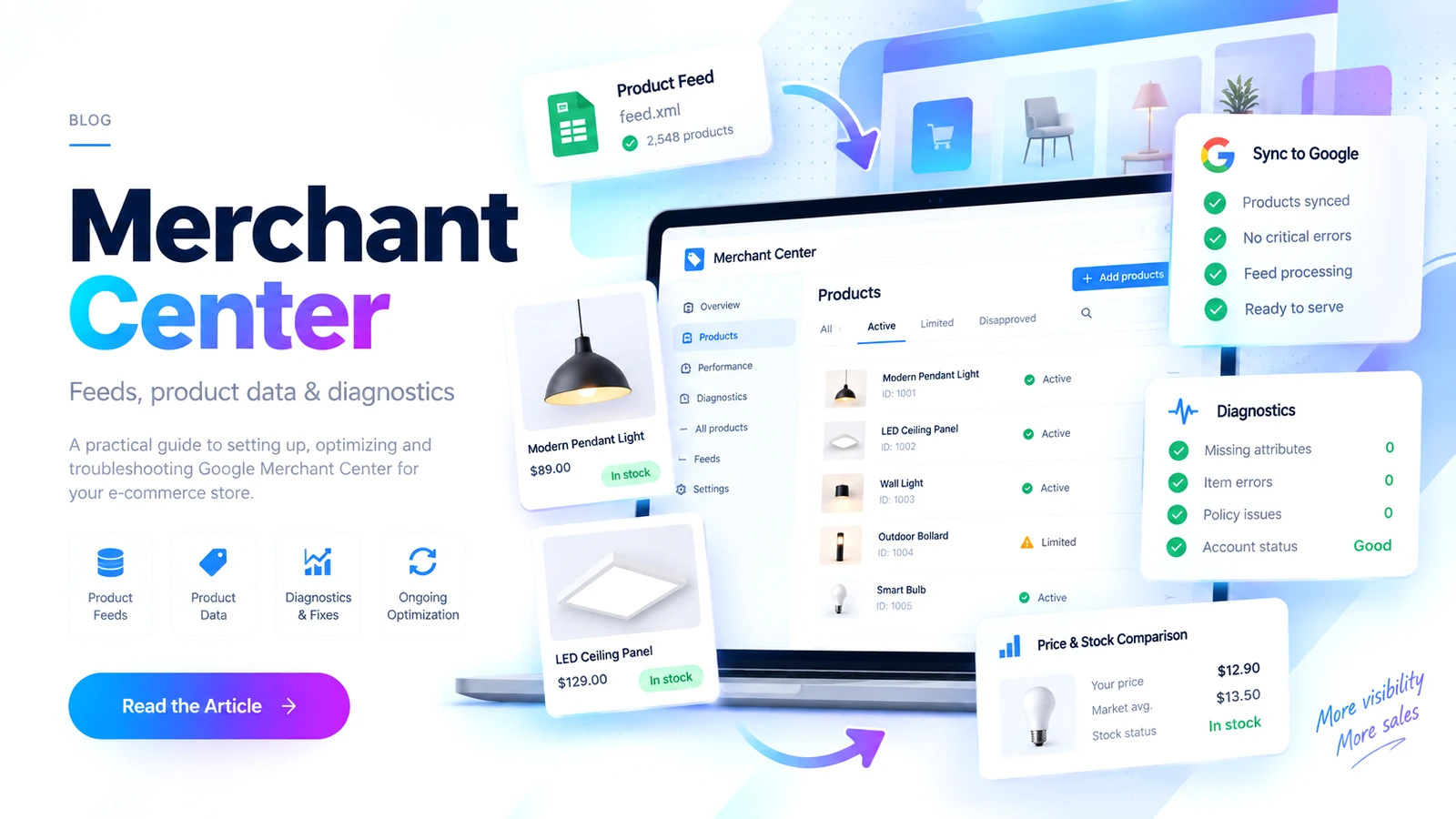
A product appearing in Merchant Center or Google Shopping is not controlled by one system. Product data starts in Shopify, moves through the Google & YouTube app or another feed method, is evaluated inside Merchant Center and may then be used by Google Ads.
1. Verify the Shopify ↔ Google connection
A connected Google & YouTube app does not automatically mean the configuration is correct. Verify that Shopify is connected to the intended Google account, Merchant Center account, Ads account and claimed domain.
Key points to check
- Is the correct Google account connected?
- Is the correct Merchant Center account selected?
- Is the domain verified and claimed?
- Is product synchronization active?
- Are target countries and markets configured correctly?
- If Google Ads is used, is the intended Ads account connected?
For multi-market Shopify stores, country, currency, availability and pricing logic should also match the Merchant Center destination setup.
2. Identify the actual feed source
A store may have more than one product-data source left over from previous configurations. A legacy file URL feed may still exist while Shopify now sends products through an app/API connection.
In this situation, the same products may come from multiple sources, making it unclear which source is actually active.
Check the feed layer
- What is the current primary data source?
- Is a legacy feed still enabled?
- Are products coming through the Shopify app/API?
- Can the same offer ID or SKU appear from more than one source?
- Are language and target country correct?
3. Separate account-level and item-level diagnostics
When many warnings appear, treating all of them as equally urgent is inefficient. Separate account-level problems from individual product issues first.
| Issue | Likely source | First check |
|---|---|---|
| Price mismatch | Shopify / landing page / currency | Compare the live page with the feed price |
| Availability mismatch | Inventory / variant / market | Check stock at variant level |
| Missing GTIN | Product data | Review barcode and identifier fields |
| Shipping issue | Merchant / Shopify shipping | Compare destination and delivery settings |
| Policy rejection | Landing page / business information | Review the exact policy message and store trust signals |
4. Why price and availability mismatches happen
Google compares feed information with the product landing page. If the values do not match, the product may receive warnings or become ineligible.
Common price mismatch causes
- Market-based pricing
- Currency differences
- Different variant prices
- Sale price and compare-at-price behavior
- JavaScript changing the visible price
- Delayed feed synchronization
Common availability mismatch causes
- Shopify inventory is not current
- Stock differs by variant
- Country-specific sales restrictions
- Different inventory locations by market
- Delayed feed updates
5. Is the Shopify product data complete enough?
A product being published in Shopify does not automatically mean it has everything Google expects.
Product data fields to check
- Product title
- Description
- Brand
- GTIN / barcode
- MPN when relevant
- Google product category
- Product type
- Image
- Price
- Availability
Variant-heavy catalogs deserve extra attention because identifiers, price and availability are often different at variant level.
6. Shipping, returns and business information matter too
Merchant Center evaluates more than the product feed. Shipping information, return policies, contact details and the overall purchasing experience can also affect eligibility.
- Is the shipping policy visible?
- Is a return / refund policy available?
- Are contact details easy to find?
- Can customers in the target country actually complete checkout?
- Does the website use HTTPS?
- Do Merchant Center shipping settings reflect the real store policy?
7. Merchant Center can work while conversion tracking has problems
Product synchronization and conversion tracking belong to the same commerce ecosystem, but they are not the same technical layer.
If Merchant Center works but Google Ads shows “No recent conversions,” check the conversion setup separately.
Check order
- Does the conversion action exist?
- Is the primary / secondary configuration correct?
- Does the purchase event actually fire?
- Is the correct Google Ads account connected?
- Has there been a recent real or test conversion?
8. Why a test order matters
After the theoretical checks in Merchant Center and conversion tracking, a real test order is one of the clearest ways to validate the customer journey end to end.
After account, feed and conversion settings look correct, a test order is one of the clearest ways to validate the full user journey.
Shopify Merchant Center quick checklist
| Area | What to verify |
|---|---|
| Google connection | Correct Google, Merchant Center and Ads accounts |
| Domain | Verification and claim status |
| Feed | Active source and duplicate / legacy sources |
| Products | Title, GTIN, price, availability and image |
| Diagnostics | Separate account-level and item-level issues |
| Shipping | Store and Merchant Center delivery settings match |
| Policies | Return, contact and business information are visible |
| Conversion | Purchase action fires and reaches the correct account |
Final thought: troubleshoot the chain, not just the warning
The most reliable approach is to follow the data path in order: Shopify product data, feed source, Merchant Center diagnostics, landing page and conversion tracking.
This makes it much easier to identify where the problem actually starts instead of changing settings in several systems at the same time.

Rıdvan Kınay
Computer engineer and web developer working across Shopify, WordPress, WooCommerce, HighLevel CRM, Google Merchant Center and technical e-commerce operations.